How to Remove Text From Video: 4 Methods That Work in 2026
Learn how to remove text from video using crop, blur, AI inpainting, and regenerate-from-source methods. Step-by-step in CapCut, Kapwing, and Premiere Pro.

- Burned-in text on video can't be toggled off, so every method below is a form of pixel reconstruction with its own quality cost
- Method 1 crops or masks the text out, which is the fastest free fix when text sits near a frame edge
- Method 2 uses blur or pixelation with motion tracking, best for compliance edits like hiding license plates or faces
- Method 3 uses AI inpainting in CapCut, Kapwing, or Veed.io to regenerate the pixels behind the text on simple backgrounds
- Method 4 skips removal entirely by regenerating the asset clean from a script, which is how Argil fits into the workflow at $39/month
- Common mistakes that make removed text obvious: static masks on moving shots, inpainting over faces, and exporting below the source resolution
How to Remove Text From Video: 4 Methods That Work in 2026
At some point every video gets a piece of text on it you wish wasn't there: a watermark, a burned-in caption, an old CTA card, or a logo you no longer have rights to. You have 4 real ways to remove text from video in 2026, but no single method works on every shot. The quality of the result depends on what's behind the text and how much the camera moves while it's on screen.
This guide covers each method with step-by-step instructions in CapCut and Kapwing. It also walks through the common mistakes that make patched footage obvious, and the upstream workflow change that stops cleanup work for anyone producing recurring video. According to HubSpot's State of Video Marketing, only 18% of businesses currently use AI tools in video production workflows, though 66% expressed interest in adopting them. Reusing existing footage is now a core production skill, and burned-in text is the most common blocker between an asset you own and an asset you can ship.
Why text is hard to remove from a finished video
Before the steps, a quick frame on why this is harder than it looks.
- Burned-in text is baked into the pixels. Unlike subtitle tracks or overlay layers, there's no toggle to switch it off.
- Every removal method is some form of pixel reconstruction. The tool either crops it out, blurs it, paints over it, or regenerates the underlying frames.
- Quality of result depends on what's behind the text. A static background means an easy fix. Motion plus faces means a hard one.
- AI inpainting is the highest-quality patch, but it still fails on faces, fast motion, and complex textures more often than tool marketing suggests.
Before you start: the 4 methods at a glance
Frame the decision so you know which step to skip to.
- Method 1 (Crop or mask): Fastest, free, works when text sits at the edge of the frame. Quality cost is losing some footage on the sides.
- Method 2 (Blur or pixelate): Free, works mid-frame, but the blurred patch is still visible. Best for compliance edits, not aesthetic ones.
- Method 3 (AI inpainting): Paid, removes text without leaving a visible patch by regenerating the pixels behind it. Best quality on most shots with simple backgrounds.
- Method 4 (Regenerate from source): Skip the removal entirely by producing a new clean version with an AI video tool. This is where Argil fits in.
Method 1: Crop or mask the text out of the frame
This is the lowest-effort method and works more often than people expect. If the text sits near a frame edge, you can crop it out of the visible area without touching the surrounding footage. If it sits mid-frame on a simple background, a masked patch covers it cleanly.
When cropping works to remove text from video
- Text sits in the lower third, a top corner, or against a frame edge: typical for watermarks and auto-captions.
- You're publishing to a vertical platform (Reels, TikTok, Shorts) and the source is 16:9. You can crop heavily without losing the subject.
- Resolution headroom: a 4K source cropped to 1080p still ships clean.
Step-by-step in CapCut, Premiere, or DaVinci Resolve
The mechanics are identical across editors, even if the panels look different.
- Drop the clip on the timeline. Set the export aspect ratio to your destination platform (9:16 for TikTok, 1:1 for Instagram feed, 16:9 for YouTube).
- Scale the clip up and reposition it until the text sits outside the visible frame. Watch the safe-area guides so you don't accidentally crop the subject.
- If the text is mid-frame, draw a mask shape (rectangle or ellipse) over just the text. Replace the masked region with a solid color sampled from the background, a duplicated patch from a nearby clean frame, or your own logo.
- Render a 2-second test before committing to a full export. Mask jitter on motion is the most common QA issue, and it's faster to catch it on a short render.
Method 2: Blur or pixelate the text region
This is the compliance-grade method when cropping is impossible and a visible patch is acceptable. Viewers can see that something has been hidden, but they can't read what it was. Use it for license plates and faces. Skip it when you're trying to hide a competitor's logo on a hero asset, because the visible patch tells the audience there was a logo there.
How to apply a tracked blur
- Use a tracked mask so the blur follows the text if the camera moves. Premiere's Track Matte Key, DaVinci's Magic Mask, and CapCut's mosaic with motion tracking all do this.
- Match the blur radius to the text size. A light gaussian blur on large text leaves it readable. Bump pixelation up until the characters are unrecognisable.
- Preview at full quality, not the proxy. Proxy playback hides edge artifacts that show up on the final export.
When to use blur instead of inpainting
- Hiding license plates, faces of bystanders, or identifying info on screens for a privacy or legal reason.
- Footage where the text moves a lot and AI inpainting produces unstable patches.
- Quick-turnaround edits where a visible patch is acceptable because viewers expect it (news, documentary, citizen journalism).
Method 3: Use AI inpainting to remove text cleanly
AI inpainting is the highest-quality way to remove text from video short of regenerating the source. It works by marking the text region and letting a model invent the missing pixels using surrounding context, frame by frame.
How AI inpainting actually works
- You mark the text region with a brush or bounding box. The model regenerates the pixels under the mask using surrounding context to invent a plausible background.
- Best results when the background is consistent: a sky, a flat wall, grass, or blurred bokeh. Worst results when text overlaps a moving face or a complex texture like a shopfront or a crowd.
- Modern tools include CapCut's Object Eraser, Kapwing, Veed.io's Remove Text, Wondershare Filmora's AI Smart Cutout, and Topaz Video AI for higher-end work.
Step-by-step with a web tool (Kapwing example)
Kapwing's Magic Tools panel is the easiest place to test AI inpainting on your actual footage in under 10 minutes. The free plan covers 720p exports up to 1 minute with a watermark and 10 monthly Magic Tools credits, which is enough to validate the quality before committing. Pricing on a paid plan starts at $16/month billed annually.
- Upload the clip. Open the Magic Tools or Remove panel. Brush over the text region across one frame.
- Apply across the timeline. The tool tracks the region automatically based on the brush stroke. Preview at full quality, not the proxy.
- Inspect the handoff frames where the camera moves or the subject crosses the patch. These are where AI inpainting fails first. Touch up with a manual mask if needed.
- Export at the source resolution. Re-encoding at a lower bitrate compounds visible artifacts at the patch edges, especially on high-detail footage.
Step-by-step on a desktop tool (CapCut Object Eraser)
- Open the clip in CapCut Desktop. Add it to the timeline. Locate the Object Eraser in the AI tools panel.
- Brush over the text on the first frame where it appears. CapCut auto-tracks across the clip. Toggle frame-by-frame preview to inspect the patch edges.
- If the patch wobbles on motion, switch to manual keyframe tracking. Set 3-4 keyframes per second of footage instead of relying on the auto-tracker.
- Export at the highest available bitrate. CapCut's default export is fine for short-form social, but bump to high or custom for footage that will be re-encoded by a destination platform.
Method 4: Skip removal and regenerate the video clean
This is the upstream solution. If you're producing recurring video content, removing text after the fact is a workflow tax you can stop paying. With the global TikTok user spending 95 minutes per day on the platform according to Backlinko, the volume of short-form video creators need to ship has gone up faster than the time they have to clean up old assets. Argil generates fully-edited short-form videos from a script using your AI clone, trained from a 2-minute recording. Captions, overlays, and CTAs stay as editable layers in the source, not burned-in pixels. Swap a CTA in the script and the next version renders clean, no inpainting required.
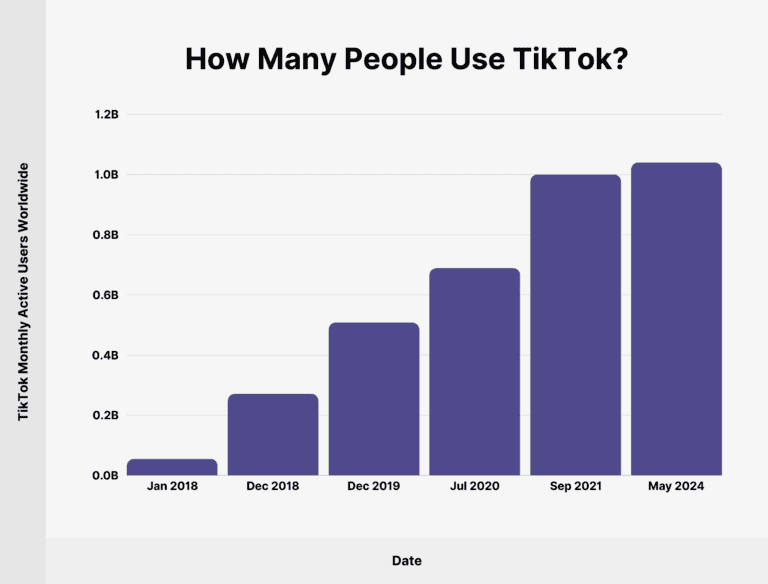
TikTok’s global user base keeps rising at remarkable speed. Image source: Backlinko
Say a campaign asset needs a swapped CTA before it goes out to a new audience. On burned-in footage that's an hour of inpainting around the old line. In Argil, you edit the CTA in the script, hit regenerate, and the new clip ships in minutes. For deeper category context, see our overview of how to create video content without being on camera, which walks through the script-to-video workflow in detail.
Pricing and fit
- Argil Classic starts at $39/month (or $27/month billed annually) for 1,600 credits and up to 25 minutes of video. Pro at $149/month covers 6,000 credits and 100 minutes. Pricing pulled from the Argil live pricing page in 2026.
- Best fit: creators, SMB marketers, and real estate agents producing weekly listing walkthroughs or content series where the video pipeline is repeating and production-side fixes compound.
- Cost frame: the $39/month entry tier is usually less than the freelance editor cost of cleaning up 1-2 assets a month, which is the inflection point where regeneration becomes cheaper than removal.
For tool comparison context, our roundup of the best AI video generators for commercial use walks through where Argil sits against HeyGen, Synthesia, and Captions on price and feature depth.
Common mistakes when you remove text from video
4 issues that make removed text obvious to viewers, even when the underlying patch is technically clean.
- Using a static mask on a moving shot. The patch slides off the text as the camera or subject moves. Always use motion tracking or set manual keyframes.
- Inpainting over a face or hands. The AI invents anatomy that doesn't match the rest of the frame. Crop or recompose the shot instead.
- Exporting at a lower resolution than the source. Re-encoding compounds visible artifacts at the patch edges. Match the export resolution to the source bitrate.
- Forgetting to remove the text from the audio. If the on-screen text was being read aloud in the voiceover, you'll need to cut or re-voice that line too, or the patch is undermined by the audio cue.
Choosing the right method for your situation
A decision shortcut for the next time you open a clip with burned-in text:
- Edge of frame? Crop.
- Mid-frame on simple background? AI inpainting in CapCut, Kapwing, or Veed.io.
- Compliance use case (faces, plates, screens)? Blur with motion tracking.
- Producing recurring content where the same overlay pattern keeps coming up? Move to AI video generation upstream so you stop generating cleanup work.
For watermark-specific scenarios (downloaded clips, stock library footage with a brand mark), our guide on how to remove watermarks from videos walks through the legal and ethical limits as well as the tools. And if you want the full strategic frame around producing video at cadence, the 2026 video marketing guide puts cleanup in the context of ROI and reach.
FAQ: how to remove text from video
Can I remove text from a video for free?
Yes. Cropping, masking, and basic blur are free in CapCut, DaVinci Resolve, and Clipchamp. AI inpainting is sometimes free for short clips on web tools (Kapwing and Veed.io both offer free tiers), though quality and length usually require a paid plan starting around $16/month on Kapwing.
What's the best AI tool to remove text from video?
CapCut's Object Eraser is the best free starting point on simple backgrounds. Kapwing and Veed.io are stronger for web-based work, and Topaz Video AI sits at the higher end for professional cleanup at $25-58/month depending on plan. For recurring video production, the better answer is to regenerate the asset clean rather than remove text after the fact.
Will the audience notice that text was removed?
On a static background with a clean AI inpainting pass, no. On a moving shot or over a face, the patch is almost always visible if you look for it. Which is why crop or regenerate are usually the safer choices when invisible removal matters.
How long does it take to remove text from a 1-minute video?
Cropping and masking takes 5-10 minutes including a test render. AI inpainting takes 5-15 minutes plus processing time on the tool's servers. Regenerating clean from a script with an AI video tool takes about the same time as writing the script, since the editing is automated.
Is it legal to remove a watermark from a video?
Removing a watermark from your own footage is fine. Removing watermarks from someone else's content to redistribute it is not, and counts as a copyright violation in most jurisdictions. The methods in this guide assume you own the source footage.
Can AI remove text from any video, or are there limits?
AI inpainting works best on simple backgrounds like a sky or a flat wall. It struggles when text overlaps a face, sits over complex textures or fast motion, or runs on clips longer than a minute or two. The honest workaround for the hard scenarios is producing the video clean from source instead of patching afterwards, which is why studios increasingly route recurring content through AI generation tools rather than back through cleanup.
Related articles
- How to Create Video Content Without Being on Camera: Beginner-Friendly Guide
- Faceless Reels: 7 Methods to Create Viral Content Without Showing Your Face
- How to Become a Content Creator in 2026 (And Why AI Limitations Matter More Than You Think)
Pick the method that matches your footage and stop letting burned-in text block you from repurposing video assets you already own.