How to Make a Video with Photos and Music: 3 Methods from Free to AI-Powered
Step-by-step guide to making a video with photos and music. Compare free editors, AI photo-to-video tools, and full AI video creation with Argil.
Article Highlights:
- Step-by-step walkthroughs for making videos from photos and music using CapCut, Canva, and iMovie (all free)
- How AI tools like Runway, Luma, and Pika turn still photos into cinematic moving clips
- Why 91% of businesses now use video marketing and how photo-based videos fit into that trend
- Music licensing rules that keep your videos safe on YouTube, TikTok, Instagram, and LinkedIn
- Platform-specific export settings so your video looks sharp everywhere you post it
- How to skip the editing entirely and create AI clone videos from a single 2-minute recording with Argil
Making a video with photos and music used to mean spending hours inside clunky editing software, but this simply isn’t the case anymore. Whether you want a quick event recap, a polished brand video, or AI-generated motion from still images, the tools available in 2026 make it straightforward for anyone to produce professional results.
This guide walks through three different methods for turning your photos into videos with music. We start with free editing tools that handle most use cases, move into AI-powered photo-to-video generators that add real motion to still images, and finish with full AI video creation for people who want to go beyond slideshows entirely.
Video now accounts for roughly 82% of all internet traffic, according to the Cisco Annual Internet Report, and 91% of businesses actively use it as a marketing tool. In 2026, you don’t need a film crew or a big budget to participate. A phone full of photos and the right tool is enough to get started.
How to Make Videos with Pics and Music: What You Need Before You Start
Before you open any tool, you need to get three things sorted: your photos, your music, and your target platform. Skipping this step is how people end up re-exporting the same video four times.
Photo Formats and Resolution
JPG and PNG work universally across every editor and AI tool covered in this guide. Use photos that are at least 1920x1080 pixels for the sharpest output. Heavily compressed or low-resolution images will produce blurry video, and no amount of editing fixes that after the fact. If you shoot on an iPhone, your photos default to HEIC format. Most video editors do not accept HEIC natively, so convert to JPG before importing. The built-in Preview app on Mac handles this, or use a free online converter.
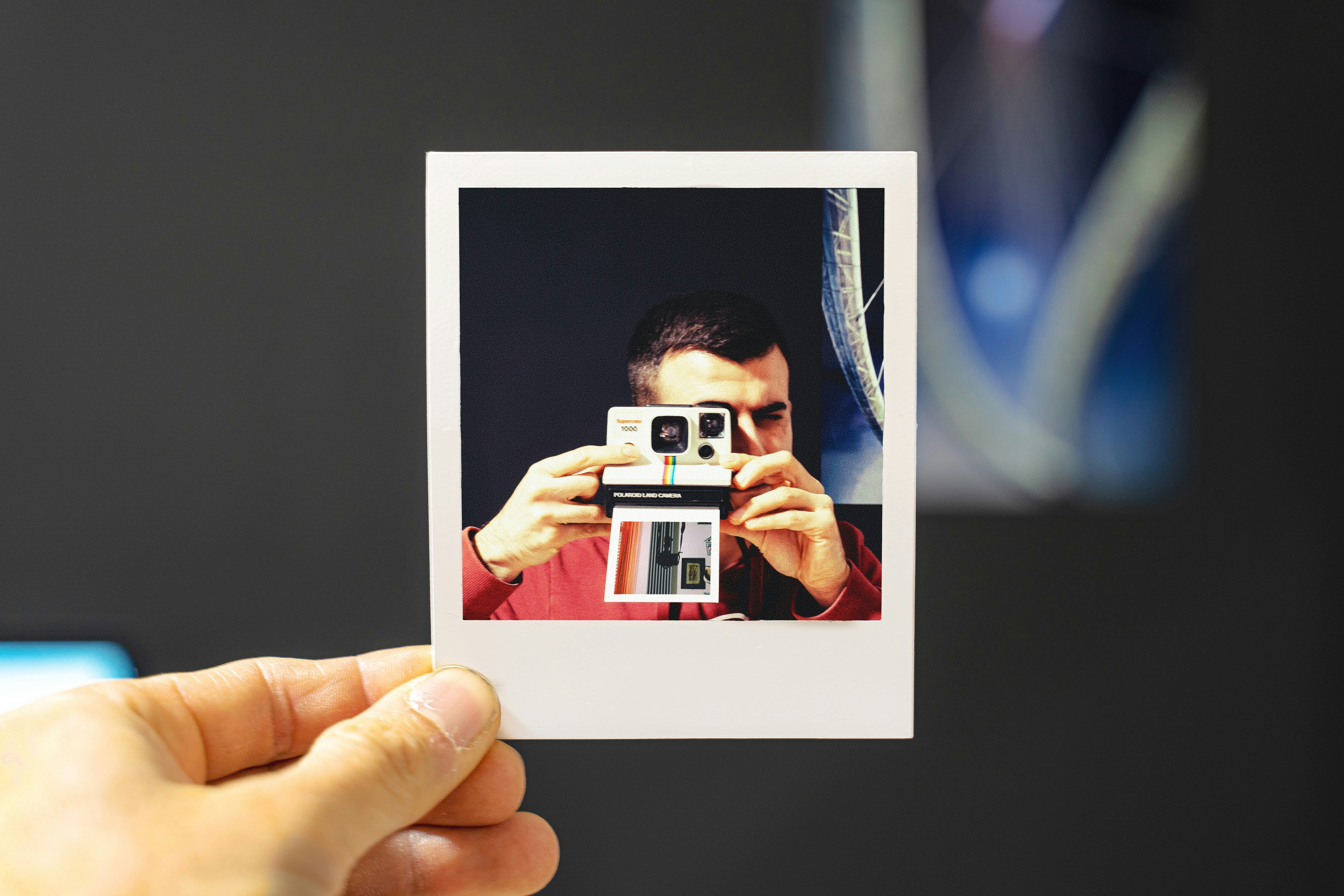
Use JPG or PNG for widest compatibility, and aim for at least 1920×1080 so your video stays sharp.
Resolution by Platform
Your target platform determines the resolution and aspect ratio you need. Decide where this video will be published before you start building it. Here is a quick reference:
- YouTube and LinkedIn: 1920x1080 (16:9 landscape)
- TikTok, Instagram Reels, and YouTube Shorts: 1080x1920 (9:16 portrait)
- Instagram Feed: 1080x1080 (1:1 square) or 1080x1350 (4:5 portrait)
If you plan to publish on multiple platforms, produce the video in 9:16 portrait first. It is easier to crop a vertical video to landscape than the other way around.
Music Licensing Basics
Do not use copyrighted music unless you have a license. Using a track from Spotify or Apple Music in your video will trigger Content ID removal on YouTube and TikTok, and can result in your video being muted or taken down entirely. Safe options for sourcing music include:
- YouTube Audio Library: free for all YouTube creators, safe for monetized videos
- Epidemic Sound: starts at $9.99/month, covers all platforms including commercial use
- Artlist: annual license covering music and sound effects for any platform
- CapCut and Canva built-in libraries: included free with the editor, licensed for use within those tools
One important detail that catches people off guard is that TikTok's built-in audio library is only licensed for use on TikTok. If you use a trending TikTok sound and then upload that same video to YouTube, you will get a copyright claim. Always use separately licensed tracks for cross-platform publishing.
Only use properly licensed music—platform libraries or paid services—to avoid takedowns, especially when repurposing videos across platforms.
Method 1: How to Make a Video with Photos and Music Using Free Tools
Free tools handle the vast majority of photo-to-video projects. If you need a slideshow with transitions, text overlays, and a music track, you can produce that in under 30 minutes without spending a dollar. Here are the three strongest free options and exactly how to use each one.
CapCut (Free, Mobile and Desktop)
CapCut is the best free option for making videos with photos and music. It runs on iOS, Android, and desktop, and the free tier covers everything you need for a polished photo video. CapCut Pro starts at $9.99/month if you want 4K exports and advanced AI features, but the free version handles 1080p output without watermarks.
Here is the step-by-step process:
- Step 1: Open CapCut and create a new project. Select your aspect ratio based on your target platform (9:16 for TikTok/Reels, 16:9 for YouTube/LinkedIn).
- Step 2: Import your photos from your camera roll or computer. Drag them into the project.
- Step 3: Arrange photos on the timeline in the order you want them to appear.
- Step 4: Adjust the duration of each photo. Tap the photo on the timeline and set the duration. Three to five seconds per photo works well for most content. Shorter for high-energy reels, longer for storytelling.
- Step 5: Add transitions between photos. Tap the gap between two clips and choose a transition style and duration. Fade and dissolve are safe defaults. Avoid overly flashy transitions unless the content calls for it.
- Step 6: Tap Audio and add music from CapCut's built-in library, or import your own licensed track.
- Step 7: Adjust the audio volume. If you are using a voiceover alongside music, keep the music track at about 20-30% volume so it does not compete with the narration.
- Step 8: Export at 1080p. The free tier exports at this resolution without a watermark.
Canva (Free Tier, Web-Based)
Canva works entirely in your browser, which makes it the fastest option if you do not want to download anything. The free tier is sufficient for basic photo videos. Canva Pro ($15/month or $120/year) adds premium stock footage, additional music tracks, and the ability to resize designs for different platforms with one click.
To make a video with photos and music in Canva, create a new design and choose the Video format. Upload your photos and drag them onto the timeline. Use Canva's built-in animations to add motion to static photos. Fade, pan, and zoom effects work well for giving still images a sense of movement. Add music from Canva's audio library, checking the license for your specific use case. Export as MP4.
Canva is best for quick social posts, presentation-style content, and event recap videos where you want something polished without learning a traditional video editor.
iMovie (Free, Mac and iPhone Only)
If you are in the Apple ecosystem, iMovie comes pre-installed and free on every Mac and iPhone. It supports 4K editing at no cost, and there are no watermarks or upsells.
Import your photos into a new movie project and drag them to the timeline. iMovie automatically applies the Ken Burns effect to still photos, which adds a slow pan and zoom that gives your images motion without any manual work. You can adjust or disable this effect per photo. Add a soundtrack from your music library or import a royalty-free track. Use the Photo Duration setting to control how long each image holds on screen. Export at 1080p HD.
The main limitation is platform availability. iMovie only runs on Apple devices, so if you are on Windows or Android, CapCut or Canva are your best alternatives.
When Free Tools Are the Right Choice
When people search “how to make videos with pics and music,” they’re often looking for free editing tools.
Free tools cover about 80% of photo video use cases. They are the right choice for quick social media posts, personal projects, event slideshows, and simple brand content.
If your goal is a clean video with photos, transitions, and background music, you don’t need to pay for software. The main trade-offs of free software are limited AI features and less control over advanced motion effects, but this may not bother you depending on how you plan to use it.
Method 2: Making Videos with Photos and Music Using AI-Powered Tools
Traditional editors arrange photos on a timeline. AI tools do something different: they generate actual motion from still images. A photo of an ocean scene becomes a clip where waves move and clouds drift. A product shot becomes a rotating 3D-style animation. This is the difference between a slideshow and a cinematic video.
Short-form video generates about 2.5 times more engagement than long-form content, and AI motion tools help you create that engaging short-form content from photos you already have.
What AI Adds That Editing Tools Do Not
AI photo-to-video tools bring three capabilities that traditional editors cannot match:
- Motion generation: turning a still photo into a moving scene where waves move, clouds drift, hair blows in the wind, or a camera appears to orbit around a subject
- Style matching: applying a consistent visual treatment across all your photos so the final video looks cohesive rather than cobbled together
- Intelligent transition generation: creating transitions based on the actual content of adjacent photos rather than using generic fade or wipe effects
Luma Dream Machine
Luma Dream Machine generates 5-second video clips from still images. Upload a photo, describe the motion you want in a text prompt (for example, "camera slowly zooms in, leaves rustle in the wind"), and Luma generates the clip. The free tier gives you 500 credits per month. Paid plans start at $9.99/month for Lite and go up to $29.99/month for Plus, which adds 4K and HDR support along with commercial usage rights.
Luma is best for cinematic marketing content and creative short-form pieces where you want genuine motion rather than a Ken Burns pan.
Runway Gen-3
Runway gives you finer control over camera movement than most AI video tools. Upload an image, select Image to Video, write a motion prompt, and generate a 5-10 second clip. Runway offers a free tier with limited credits and a watermark. The Standard plan starts at $12/month, and the Pro plan at $28/month provides more credits and faster generation. For reference, 2,250 credits on the Standard plan equals roughly 225 seconds of Gen-3 Alpha video.
Runway is best for commercial-quality content and brand campaigns where precise camera movement matters.
Pika Labs
Pika generates video from an image plus a text prompt, and it specializes in product animation and lifestyle content. The free tier provides 80 monthly credits. The Standard plan starts at just $8/month for 700 credits, making it the most affordable paid option in this category. The Pro plan at $28/month gives you 2,300 credits with faster generation speeds and full commercial rights.
Pika is a strong choice for e-commerce brands that want to animate product photos into short social clips.
The AI Photo-to-Video Workflow
None of these AI tools produce a full, finished video on their own. They generate individual clips from your photos. The workflow for creating a complete video looks like this:
- Generate individual clips from your photos using Luma, Runway, or Pika
- Import all generated clips into CapCut or another editor
- Arrange the clips in order on the timeline
- Add transitions between clips
- Overlay your licensed music track
- Add captions if needed
- Export the final video
Total production time for a 60-second video using this method is roughly 30-60 minutes, depending on how many photos you are working with and how many generations you need to get the motion right.
This method is best for creative content marketing, brand campaigns, product showcases, and travel or lifestyle content where real motion adds emotional impact that a static slideshow cannot deliver.
Method 3: Full AI Video Creation with Photos and Music
Methods 1 and 2 both produce photo-based videos, either as slideshows or as AI-animated clips. But if your actual goal is a talking-head video where someone explains, teaches, or presents content, photos and music are the wrong starting point. You need a narrator, not just images.
This is where AI video creation tools go beyond what editors and image-to-video generators can do. Instead of arranging photos on a timeline, you create a video of yourself speaking and presenting, without filming anything new.
Argil is built for exactly this use case. You upload a 2-minute video of yourself once, and Argil generates an AI clone of your face and voice. From that point forward, you write a script and Argil produces a fully-edited video with you appearing on camera, narrating and presenting. No additional filming required. The platform handles captions, b-rolls, and transitions as part of its built-in editing pipeline. Your photos, articles, and other content can be incorporated into the final output as visual elements.
Argil's Classic plan starts at $39/month and includes 3 custom avatars and 25 video minutes per month. The Pro plan at $149/month gives you 10 avatars, 100 video minutes, and API access.
Argil removes the biggest bottleneck in video production: actually having to sit in front of a camera every time you want to publish.
This approach is best for personal brands, course creators, LinkedIn thought leaders, and marketers who want to scale video content without scaling filming time. If you have been avoiding video because of the production burden, this is the method designed to remove that barrier entirely.
How to Choose the Right Music for Your Photo Video
The music you choose shapes the entire feel of your video. A mismatched track can make a polished video feel amateurish, while the right music elevates even a simple slideshow.
Free Music Libraries
- YouTube Audio Library: free for all YouTube creators, safe for monetization. Thousands of tracks organized by genre, mood, and duration.
- ccMixter: Creative Commons tracks from independent artists. Read the specific license on each track before using commercially.
- Free Music Archive: a large library with various license types. Some tracks are free for commercial use, others require attribution. Always verify the license before publishing.
Matching Music to Mood
- Upbeat and fast-paced: event highlights, travel content, product launches, celebration videos
- Ambient and slow: emotional stories, memorial videos, nature content, real estate walkthroughs
- Neutral and understated: educational content, tutorials, and any video where a voiceover or narration carries the meaning. The music should sit in the background, not compete.
How to Make Videos with Pics and Music: Licensing Rules to Know
Knowing how to make videos with pics and music isn’t just about finding the right tools to use. You also need to familiarise yourself with licensing laws so your content doesn’t get taken down and you don’t get flagged for copyright enfringment.
Best practice is to use tracks labeled for commercial use or Creative Commons Attribution. Do not use music from Spotify, Apple Music, or any commercial release without a sync license. If a platform has a built-in music library (like TikTok or CapCut), that license typically covers use within that platform only. Using a trending TikTok sound on YouTube will trigger copyright claims. For cross-platform publishing, always use separately licensed tracks from services like Epidemic Sound or Artlist.
Optimizing Your Video with Photos and Music for Each Platform
The same video can perform very differently across platforms if you do not optimize the format. Over 82% of people say watching a video influenced a purchase decision, but that only works if the video actually plays correctly and looks sharp on the platform where your audience finds it. Here are the export specs that matter.
YouTube
Export at 1920x1080 (16:9), H.264 or H.265 codec, 24-30fps, MP4 container. For photo slideshow content, aim for 3-10 minutes to hit watch time benchmarks that help your video get recommended. If the video runs over 5 minutes, add chapters in the description so viewers can skip to sections that interest them.
TikTok
Export at 1080x1920 (9:16), MP4 or MOV, 30fps. For broad reach, keep your video between 15-60 seconds. Educational content can run up to 3 minutes. Add captions directly in TikTok's editor after uploading, as auto-captions are built in and the algorithm favors videos with captions enabled.
Instagram Reels
Export at 1080x1920 (9:16), 15-90 seconds for maximum distribution. Instagram favors Reels that use original audio over repurposed TikTok content with watermarks. Upload at the highest quality setting your export tool offers.
Export at 1920x1080 (16:9) or 1080x1080 (1:1). The maximum duration is 10 minutes, but the sweet spot for engagement is 1-3 minutes. Always burn open captions directly into the video file, because LinkedIn autoplay is muted by default. If your audience cannot read what is happening, they scroll past. MP4 under 5GB.
FAQ
What is the best free app to make a video with photos and music?
CapCut is the strongest free option across mobile and desktop. It handles photo import, timeline editing, transitions, and has a built-in licensed music library. The free tier exports at 1080p without watermarks.
For web-based editing without downloading an app, Canva works well for basic photo slideshow videos.
Can I use copyrighted music in photo videos?
Not without a license. Using a copyrighted track without permission will result in your video being muted, demonetized, or taken down on YouTube and TikTok.
Use royalty-free sources like YouTube Audio Library (free), Epidemic Sound ($9.99/month), or Artlist (annual license) instead.
How long should a photo video be?
It depends on the platform and purpose. For YouTube, 3-8 minutes gives you enough watch time to benefit from the recommendation algorithm. For TikTok and Reels, 15-60 seconds performs best for reach. For LinkedIn, 1-3 minutes is the sweet spot. For a memorial or event slideshow shared privately, length is purely based on how many photos you want to include.
How do I add text over photos in a video?
In CapCut, tap the text tool, type your text, position it on the frame, and set the duration to match the photo it appears over. In Canva, add a text element to your design and time it on the timeline. Most free video editors support text overlays natively without needing a paid plan.
What is the best aspect ratio for photo videos?
It depends entirely on where you are publishing. 9:16 (vertical) is the dominant format for TikTok, Instagram Reels, and YouTube Shorts, and it is quickly becoming the default for short-form content. 16:9 (landscape) remains standard for YouTube long-form and LinkedIn. If you are publishing to multiple platforms, produce in 9:16 first and crop to 16:9 for YouTube, rather than the other way around.
Start Making Videos with Your Photos and Music Today
You now have three clear paths for making a video with photos and music. Free tools like CapCut, Canva, and iMovie handle straightforward photo slideshows with transitions and background music. AI tools like Luma, Runway, and Pika generate real motion from still images for more cinematic results. And if you want to go beyond photos entirely and create talking-head videos without filming, Argil lets you build an AI clone from a single 2-minute recording and produce fully-edited videos from scripts.
Pick the method that matches your goal, gather your photos and a licensed music track, and start building. The tools are accessible and the learning curve is shorter than you might expect.