How to Upload a YouTube Short in 2026: Step-by-Step Guide
How to upload a YouTube Short from desktop, mobile, and the Studio camera in 2026, plus the settings and cadence that actually drive reach.
Article Highlights
- Upload a YouTube Short from desktop or mobile
- The exact 2026 specs that keep you in Shorts
- Settings that decide whether a Short gets reach
- Title, hashtag, and thumbnail choices that pull clicks
- Why cadence, not upload, is the real wall
- Argil makes 5 Shorts a week realistic
How to Upload a YouTube Short in 2026: Step-by-Step Guide
Most people who ask how to upload a YouTube Short already half know the answer. You tap a plus button, pick a clip, hit publish. The part that trips creators up is everything around that tap, the spec that decides whether YouTube even files your video as a Short, the title that earns a swipe-up instead of a swipe-past, and the settings that quietly cap your reach before a single viewer sees the clip.
I have uploaded hundreds of these. This guide walks the exact steps across desktop, the mobile app, and the in-app Studio camera, then turns to the question that decides whether any of it pays off: can you keep the upload going 5 times a week without it eating your business.
Before you upload: what YouTube counts as a Short in 2026
Get the spec wrong and your Short never reaches the Shorts feed. YouTube enforces a short, vertical format: the safe target is a video under 60 seconds in a 9:16 frame, published either with #Shorts in the title or description or recorded through the Shorts camera. Stay inside that and the platform routes it correctly.
What changed recently is helpful. YouTube now auto-detects a vertical clip under the length ceiling as a Short even without the hashtag, though the tag still nudges the algorithm to classify it cleanly (YouTube Help). Write the file specs down: 1080x1920 minimum, MP4 or MOV, audio at 48kHz AAC. A clip that runs long or exports at 16:9 gets treated as a standard upload and never enters the Shorts shelf, which is the single most common reason a "Short" disappears. If you want the full breakdown of the length rules, see this guide on how long YouTube Shorts can be.
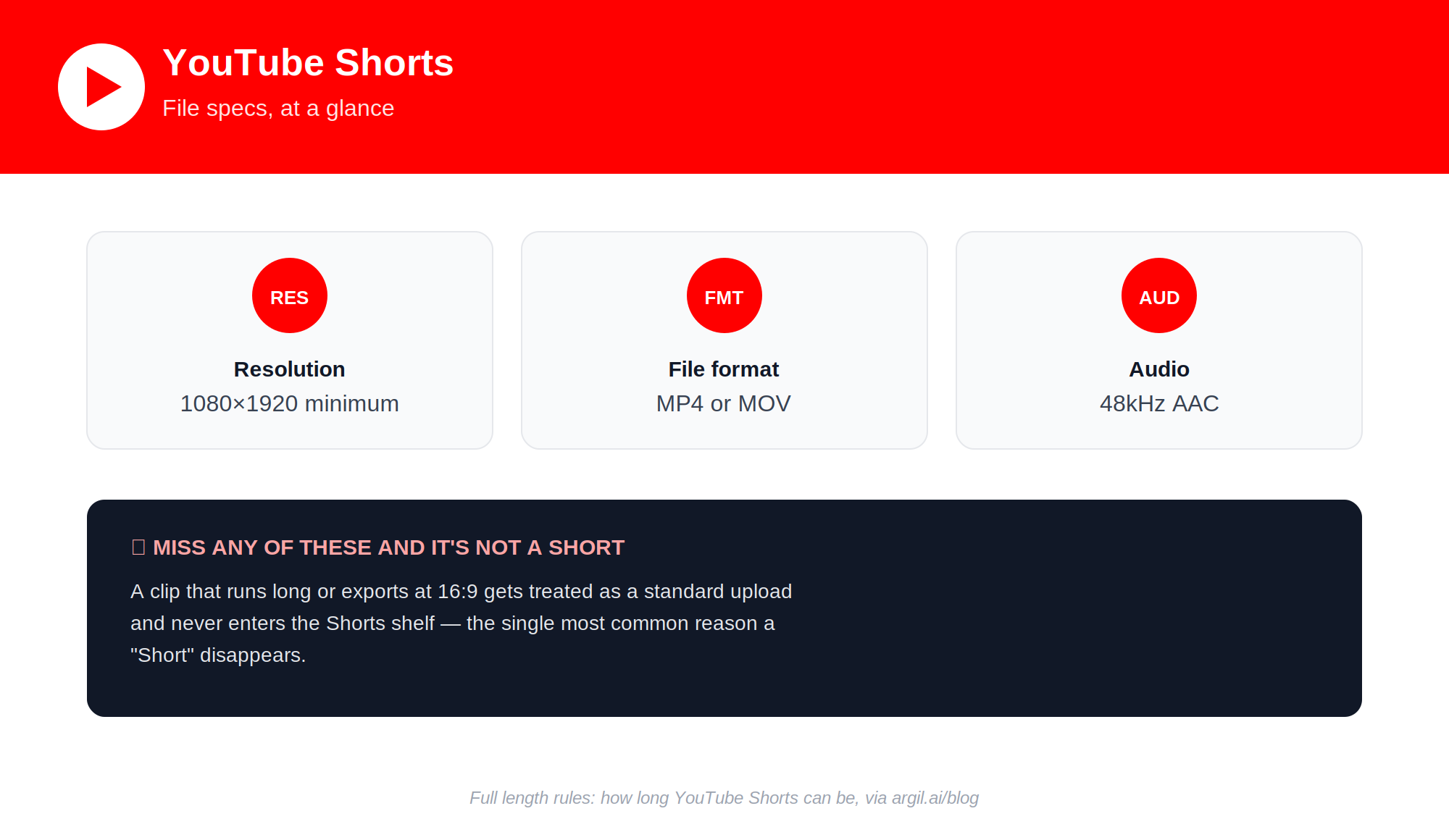
YouTube Shorts specs at a glance. Images generated using Claude.ai
Step 1: upload from desktop using YouTube Studio
Desktop is the cleanest path when your video is already edited and exported. Open studio.youtube.com, click the camera icon at the top right, and select Upload video. Drag and drop your 9:16 file, and Studio reads the vertical aspect ratio and switches the flow into Shorts mode automatically.
From there, 4 fields decide your reach, and they sit in the H3s below. Fill them out with intent rather than autopilot, then click Publish. The whole process takes about 2 minutes once the upload finishes processing, which is exactly why the upload step is never the thing that holds creators back.
Writing a title that pulls clicks
Keep titles under 60 characters so they do not truncate on mobile, where most Shorts get watched. Lead with the curiosity gap or a specific number, never the bland topic label. A structure like "outcome in timeframe" or "number of things that get a result" outperforms a flat description nearly every time.
Add #Shorts at the end of the title as a redundant safety net. The algorithm picks up the format on its own now, but the tag costs nothing and removes any ambiguity about how YouTube should file the clip.
Hashtags that actually route traffic
Use 3 to 5 hashtags in the description, not 20. A wall of tags reads as spam and does nothing for routing. Anchor on #Shorts, add one niche tag, and add one trend tag for whatever is currently surging in your category.
Resist stuffing hashtags into the title itself. YouTube reads them, but a title crammed with tags hurts your click-through rate, and CTR is what you are optimizing for in a feed where the next clip is one flick away.
Custom thumbnail (now allowed on Shorts)
YouTube lets you upload a custom thumbnail for Shorts, and most creators still skip it and leave clicks on the table on their channel page and in search. Use the first frame only if that frame is genuinely the hook. Otherwise design a static thumbnail at 1080x1920 with 3 to 5 words maximum.
Keep faces and text in the center safe zone. The bottom fifth of the frame gets covered by the title and the engagement bar, so anything important down there is effectively invisible. Strong thumbnails matter most for evergreen Shorts you want surfacing in search months later.
Step 2: upload from mobile using the YouTube app
Mobile still dominates uploads because most creators shoot and finish on a phone. The flow starts the same on both platforms: tap the plus button at the bottom center of the home tab to trigger an upload. From there iPhone and Android diverge slightly, so here is the exact tap sequence for each.
iPhone walkthrough
Tap the plus, select Create a Short, and grant Photos library access the first time. Pick your clip, trim it under the length ceiling with the timeline scrubber, then add text, sound, or filters in the editor. Tap Next, fill in the title, set visibility, answer the Made for Kids question, and tap Upload Short.
Android walkthrough
Tap the plus and select Create a Short. Android surfaces Green Screen and Trim right in the same editor, which is handy for quick fixes. The upload sheet works the same as iPhone, with one difference: the share sheet appears after you publish rather than before. Android also lets you upload directly from third-party gallery apps as long as the file is already exported in 9:16.
Step 3: record directly in YouTube Studio's Shorts camera
The in-app camera is for raw, unedited takes. Reach for it when you want a quick founder talking-head clip or a screen-only Short that does not need post-production polish. It is the fastest way from idea to published, with the tradeoff that the editing is intentionally bare.
Open the YouTube app, tap the plus, select Create a Short, and tap the red record button. Tap and hold for a continuous take, or tap once for stop-and-start segments, which the camera stitches together for you. Add captions through the Aa text button, pull music from the royalty-free Sound library, and use Green Screen to swap backgrounds.
Skip the in-app camera entirely if you need brand-consistent captions, custom transitions, or b-roll. The built-in editor is deliberately minimal, so anything beyond a simple take belongs in a real editing flow before upload.
Step 4: settings that affect Shorts reach
The upload form hides several settings that decide your distribution before anyone watches. Get these wrong and a good Short underperforms for reasons that have nothing to do with the content.
Visibility is the big one: Public is the only setting that enters the Shorts feed, while Unlisted and Private kill distribution outright. For Made for Kids, set No unless you genuinely run a kids channel, because Yes disables comments, personalized ads, and most monetization. Leave age restriction off unless your content is truly adult, since restriction throttles feed delivery.
Keep comments on, because comment volume is a ranking input the Shorts system actually reads. Pick the category that matches your niche so the algorithm clusters you with similar creators. Tags barely move the needle in 2026 but are worth a few seconds for the long-form and Shorts blend. Finally, set language and location correctly, since YouTube uses both to build the region-specific Shorts feed your video first lands in.
Step 5: the cadence problem most creators hit after the first 5 uploads
This is the point where most creators stall. You upload a few Shorts, the mechanics feel easy, and then the views flatline, because 1 Short a week barely registers on this platform. The Shorts system rewards channels posting 5 to 7 a week, and it leans hard toward a daily rhythm.
The reason is structural. Each Short gets its own initial test audience of roughly 200 to 500 viewers, and the more bites you take at that apple per week, the more chances one clip breaks out and the algorithm widens its delivery. That is also why monetization sits where it does: Shorts RPM runs around $0.01 to $0.06 per 1,000 views against $2 to $12 for long-form, so the format pays through volume and as a funnel, not per clip (Shopify, 2026). Even qualifying for the Partner Program through Shorts demands 10 million valid views in 90 days, a bar you only clear by posting constantly (vidIQ, 2026).
The failure point is never the upload button, it is producing 30-plus Shorts a month while running a business. Done the traditional way, 5 Shorts a week means 1 to 2 hours filming on a Sunday, then 30 to 60 minutes of editing per clip, plus captions and thumbnails, which adds up to 5 to 10 hours a week per person. Most founders, lawyers, agents, and SMB owners cannot sustain that, which is why the cadence breaks long before the upload step ever does.
Tools that make daily Shorts realistic
The ratio is what breaks people. The upload takes 2 minutes, but producing the video behind it takes 60 to 90 minutes, and that gap is the real bottleneck that any serious cadence strategy has to attack first.
This is where AI video clones change the math. These tools train on roughly 2 minutes of footage of you, then generate fully edited short-form videos from a script. The camera leaves the weekly loop, and what used to be an hour of filming and editing becomes a few minutes of writing and review.
How an AI video clone changes the cadence math
The setup cost is a single 2-minute clip of you talking to camera, uploaded once and never again. After that, the per-Short cost is writing or pasting a script, clicking generate, and getting back a finished 9:16 video with captions and b-roll already inside it.
That collapses the time per Short from 60 to 90 minutes down to 5 to 10 minutes of editorial review. The practical effect is that your cadence ceiling moves from 1 or 2 a week up to 5 to 10 a week without adding a single hour to your calendar.
Where Argil fits in this stack
Argil is the AI video creation platform that runs this clone-to-Shorts workflow for founders, real estate agents, lawyers, and SMB owners. You upload a 2-minute training clip, generate your clone, then feed it scripts or repurpose content you already have, like a newsletter or a blog post, into ready-to-post video.
The output is fully edited: captions, b-roll, transitions, and the correct aspect ratio for Shorts at 9:16, plus Reels and TikTok in the same render. The intended rhythm is daily output. Write 5 scripts on Monday, get 5 ready-to-upload Shorts back by Tuesday, and post one a day Wednesday through Sunday. If you want your scripts to land, it helps to study choosing reel hooks that perform. And if you are curious how the clone itself comes together, here is how cloning yourself with Argil works step by step.
One clarification, because it comes up. This is not a deepfake or impersonation tool. You train on yourself and own the clone, and the output is a video version of you reading your own words. The repurposing angle alone is worth a look, since one blog can become a week of Shorts, as covered in this guide on repurposing blog content into short-form video.
When AI video tools are not the right answer
Vlog-style Shorts that live on location, motion, and atmosphere still need a real camera, because AI clones do their best work on talking-head, educational, and authority content. If your edge is your presence in dynamic settings, cooking, travel, or fitness demos, record traditionally and use AI only for batch repurposing of the talking parts.
And if you post less than 1 Short a week, the clone setup is overkill. Record on your phone, use the Studio camera, and revisit AI when cadence becomes the goal rather than the exception. There are also ways to build a presence without filming at all, walked through in this guide on creating short-form video content without a camera.
Common mistakes that kill Shorts before they leave the gate
A handful of avoidable errors quietly tank otherwise good Shorts. Watch for these every time you publish.
Uploading a 16:9 video and expecting it to become a Short is the classic one, since YouTube files it as long-form with no Shorts feed entry. Going over the length ceiling does the same, so trim to 58 or 59 seconds for a safety buffer. Leaving #Shorts out of the description is no longer fatal, but the tag still nudges classification, so keep it in.
A weak first 1 to 2 seconds loses most of your viewers before the payoff, so lead with the punchline, the question, or the visual hook rather than a warm-up. Do not place vertical text in the bottom fifth of the frame, where the YouTube interface covers it. Posting once and then waiting is its own mistake, because the algorithm rewards consistency over any single upload, so treat your first 30 Shorts as data collection rather than a launch. And never repost a TikTok with the watermark still on it, since YouTube actively suppresses watermarked clips in the Shorts feed.
Frequently asked questions
Does YouTube pay for Shorts in 2026?
Yes. Partner Program members earn a share of the Shorts ad revenue pool based on their view share. RPMs sit far below long-form, often a few cents per 1,000 views, so Shorts pay best as a top-of-funnel for long-form watch time and external offers rather than as a primary revenue line. Treat the ad money as a bonus on top of the audience you build.
Can I upload a long video as a Short?
Only if you trim it under the length ceiling and reframe it to 9:16 before upload. YouTube does not let you flag an existing long-form upload as a Short after the fact. Cut and reframe it first using the YouTube app trimmer or any free editor, then upload the short version as a new file.
Do I need a custom thumbnail?
It is not required, but a custom thumbnail lifts your click-through on the channel page and in search, where Shorts also surface. The feed itself shows the first frame, so optimize that too. Custom thumbnails pay off most on evergreen Shorts you expect people to find through search months from now.
What is the ideal Shorts length?
The sweet spot is 25 to 45 seconds. Very short clips of 15 to 20 seconds get high completion but lower total watch time, while clips pushing 50 to 59 seconds need a stronger hook to keep viewers past the midpoint. Around 30 seconds is the median for top performers in most niches.
Can I repost from TikTok to YouTube Shorts?
Yes, but strip the TikTok watermark first, either with a free removal tool or by re-exporting through an editor. YouTube suppresses watermarked content in the feed. Repurposing is fine as long as the audio is yours or royalty-free, so the clip reads as native rather than recycled.
How many Shorts should I upload per week?
Aim for a minimum of 3 and target 5 to 7 if you want the algorithm to take you seriously. Channels posting once a week tend to stall at a few hundred to a couple thousand views per clip. Channels posting daily routinely climb into the tens of thousands per Short within about 90 days as the system learns their audience.
Do hashtags still matter for Shorts in 2026?
Less than they did a few years ago, but yes. The algorithm now leans mostly on the video itself, the visuals, audio, and captions, for classification. Hashtags are a secondary signal that still helps with niche routing. Use 3 to 5 relevant tags at most, since more than that reads as spam.
Related Articles
- How to make a YouTube channel from scratch
- How to automate short-form videos fast in 2025
- YouTube Shorts vs TikTok: dominating both platforms
Step-by-step guide to upload a YouTube Short and keep the cadence going in 2026.