
Best Tools to Remove Text From Video in 2026: 7 Picks Compared

- Every method to remove text from video is a form of pixel reconstruction: crop it out, blur it, paint over it, or regenerate the frames behind it
- CapCut and Kapwing handle most short-form cleanup work for free or under $20/month, with quality holding up on clean backgrounds
- Veed.io fits in-house marketing teams, Premiere Pro and DaVinci Resolve sit at the pro tier, and Topaz Video AI covers restoration-grade work
- AI inpainting struggles on faces, complex textures, and fast motion, which is why no tool removes text invisibly on every shot
- Per-tool pricing in 2026 ranges from free (CapCut, DaVinci Resolve) to a one-time $295 (DaVinci Resolve Studio) to subscription tiers up to $58/month (Topaz Video AI Pro)
- Argil sits in a different category: produce the video clean from a script so you never need to remove text from video afterwards, starting at $39/month
Best Tools to Remove Text From Video in 2026: 7 Picks Compared
If you've ever tried to remove text from video and watched the patch slide off the frame, you already know why this is a comparison article and not a one tool wins recommendation. Burned-in captions and old overlays each need a different approach, and the right tool depends on whether you're a creator on your phone or a professional editor working on a hero asset.
This guide walks through 7 picks across desktop editors, web tools, mobile apps, AI inpainting specialists, and a production-side option that skips the cleanup entirely. Pricing is verified on each tool's live page. Where a method has a clear failure mode (faces, fast motion, complex textures), it's called out instead of glossed over.
Video is now the dominant marketing format. According to Wyzowl's 2026 State of Video Marketing, 91% of businesses use video as a marketing tool and 82% say it delivers a good return on investment. The more video you produce, the more often you'll run into burned-in text on an asset you need to reuse, which is why the workflow you pick matters.
How we picked the tools in this list
Every pick was scored against 4 criteria, biased toward what actually matters when you're under deadline:
- Quality of removal: does the patch hold up when you pause on a static frame and look at it?
- Workflow fit: desktop editor, web tool, mobile app, or production-side regeneration.
- Pricing transparency: a published price page, no quote-only options for the entry tier.
- Speed: minutes to a usable export, not hours of mask wrangling.
Every price quoted below was pulled from each tool's current pricing page. A few competitor entries flag a wider range when only a subset of plans publishes the full breakdown. For tool-by-tool detail on watermark scenarios, our guide to removing watermarks from videos pairs well with this comparison for tool-specific scenarios.
1. CapCut: best free mobile and desktop option
CapCut is the default starting point for most creators, and for good reason. The Object Eraser tool is free on iOS, Android, web, and desktop, and the motion tracking on masks holds up surprisingly well on simple backgrounds. If you're publishing short-form vertical content to TikTok or Reels, this is usually the only tool you need.
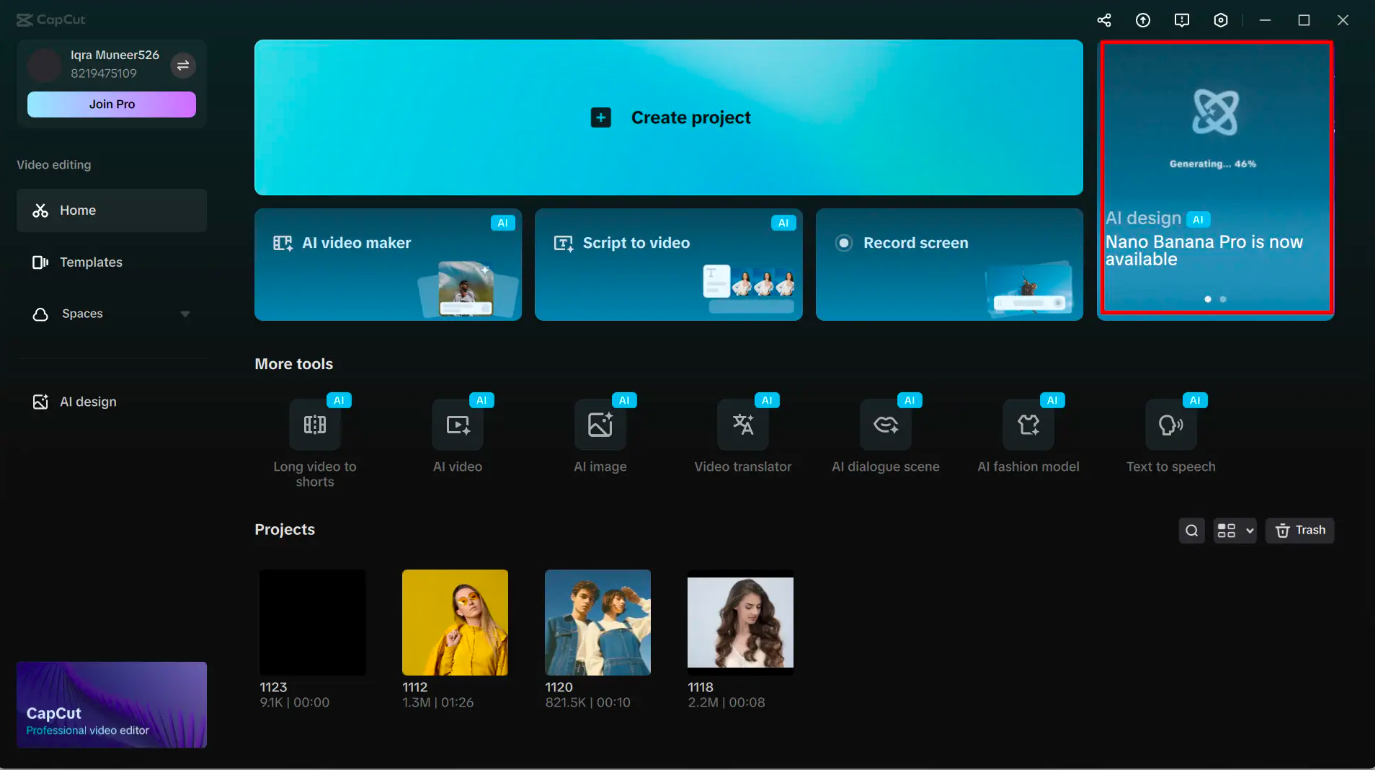
CapCut is an easy-to-use video editor that helps you create polished videos with text, captions, and creative effects in just a few taps.
Strengths, limitations, best use case
- Strengths: Free Object Eraser, motion tracking on masks, available on iOS, Android, web, and desktop. Direct export to TikTok at the correct aspect ratio.
- Limitations: Object Eraser quality drops on busy backgrounds and on text overlapping faces. Some advanced features sit behind CapCut Pro, and there's ongoing platform uncertainty worth tracking (see our breakdown on whether CapCut is getting banned) if it's central to your workflow.
- Best use case: Short-form vertical content where the text sits on a clean background and you want a free, fast workflow.
- Pricing: Free for the core editor and Object Eraser. CapCut Pro adds advanced AI features at a paid tier that varies by region.
2. Kapwing: best web-based AI inpainting
Kapwing is a browser-first editor with a Magic Tools panel that handles AI text removal with motion tracking. Nothing to install. The free tier is enough to test the quality on your actual footage, which is the only test that matters when you remove text from video.
Strengths, limitations, best use case
- Strengths: Nothing to install. Magic Tools include text removal with motion tracking. Collaborative editing makes review faster for marketing teams. The free tier covers 720p exports up to 1 minute with a watermark, plus 10 monthly credits for Magic Tools.
- Limitations: A paid plan is needed for HD export, longer videos, and watermark removal. Processing slows on long uploads. Output quality dips on 4K source footage.
- Best use case: SMB marketers and creators handling clips under 2 minutes who want browser-based AI cleanup without a desktop install.
- Pricing: Free plan with watermark. Pro at $16/month billed annually or $24/month monthly. Business at $50/month annually or $64/month monthly, which adds custom voice clones and lip sync. Pricing pulled from the live Kapwing pricing page in 2026.
3. Veed.io: best for batch and team workflows
Veed.io is built for in-house marketing teams. The Remove Text panel is clean, brand kit support keeps assets on-brand across multiple editors, and bulk processing matters when you're cleaning up a dozen variants of the same campaign asset.
Strengths, limitations, best use case
- Strengths: Clean Remove Text panel, brand kit support, bulk processing, integrations with cloud storage and stock libraries.
- Limitations: Pricing climbs quickly past the free tier as you add seats. AI inpainting is solid but not best-in-class on complex backgrounds.
- Best use case: In-house marketing teams cleaning multiple assets a week and needing collaboration features.
- Pricing: Veed.io publishes a tiered Basic, Pro, and Business pricing structure on its live page, starting in the $18-30/month range for individuals annually and rising for team seats. Check the live pricing page for your seat count before committing.
4. Adobe Premiere Pro and DaVinci Resolve: best for professionals
This is where you move from short-form cleanup to frame-perfect compositing. Premiere Pro's Content-Aware Fill and DaVinci Resolve's Magic Mask plus Object Removal are the tools professional editors reach for when the patch needs to be invisible at full screen on a hero asset.
Strengths, limitations, best use case
- Strengths: Frame-perfect masks with motion tracking, Premiere's Content-Aware Fill, DaVinci's Magic Mask and Object Removal, and full control over compositing.
- Limitations: Steep learning curve. Premiere Pro is subscription-only at roughly $22.99/month for the standalone single-app plan (verify the current Adobe single-app rate at checkout). DaVinci Resolve has a free tier, and the pro tools sit in DaVinci Resolve Studio at a one-time $295.
- Best use case: Professional editors working on hero assets where the patch needs to be invisible at full screen.
- Pricing: DaVinci Resolve free, DaVinci Resolve Studio $295 one-time (pulled from Blackmagic Design's live product page). Premiere Pro standalone runs at the standard Adobe Creative Cloud single-app rate, billed monthly or annually.
5. Wondershare Filmora: best balanced desktop editor
Filmora sits between CapCut and Premiere on the difficulty curve. AI Smart Cutout and AI Object Remover are the relevant features here. The output isn't as clean as Premiere's Content-Aware Fill, but the learning curve is shorter and the one-time license option avoids subscription fatigue.
Strengths, limitations, best use case
- Strengths: AI Smart Cutout, AI Object Remover, lower learning curve than Premiere, one-time purchase available, full-featured export.
- Limitations: AI features are good not great. Occasional jitter on masks across longer clips. Less advanced than Premiere or DaVinci on hero work.
- Best use case: Solo creators and small businesses who want a desktop editor without a subscription and don't need pro-grade compositing.
- Pricing: Annual subscription from $49.99/year (Basic) or $59.99/year (Advanced, with 1,000 AI credits a month). Perpetual license $79.99 one-time, covering 15 major version updates. Pulled from the Filmora live pricing page.
6. Topaz Video AI: best for high-end cleanup
Topaz Video AI is restoration-grade. The model-based reconstruction handles complex backgrounds and motion better than browser tools, which is why studios use it on archival footage and paid client deliverables where quality matters more than turnaround.
Strengths, limitations, best use case
- Strengths: Model-based reconstruction handles complex backgrounds and motion better than browser tools, batch processing, and the option to run locally on your GPU.
- Limitations: Not a full editor. You'll pair it with another tool for masking and timeline work. Requires a strong GPU. Slower workflow than browser tools.
- Best use case: Studios and editors restoring archival footage, paid client deliverables, or hero work where quality matters more than speed.
- Pricing: Personal plan at $25/month billed annually or $33/month monthly. Pro plan at $58/month billed annually or $67/month monthly. Promotional discounts run periodically. Pricing pulled from the Topaz Labs live pricing page.
7. Argil: the production-side complement
Argil sits in a different category from every other tool on this list because it removes the reason you would need to clean up text afterwards. By generating fully-edited short-form videos from a script using your AI clone (trained from a 2-minute recording), it produces clean source assets where captions, overlays, and CTAs are layered as editable elements rather than burned into the pixels.
That changes the economics of repurposing. When you need a campaign asset with a swapped CTA or a translated overlay, you regenerate from the script in minutes instead of inpainting around the old text. For weekly creators and for real estate agents cycling through listing footage where overlays change per property, the production-side fix compounds faster than the cleanup workflow.
Strengths, limitations, best use case
- Strengths: Produces fully-edited short-form videos from a script using your AI clone. Captions, overlays, and CTAs are editable layers, not burned-in pixels, so swapping a CTA, translating an overlay, or producing a v2 takes minutes from the script.
- Limitations: Not a fix for footage you've already shot with text. It's the tool you switch to for future production so you stop generating cleanup work in the first place.
- Pricing: Classic at $39/month (or $27/month billed annually) for 1,600 credits and up to 25 minutes of video. Pro at $149/month ($104/month annually) for 6,000 credits and up to 100 minutes. Scale at $499/month ($349/month annually) for 18,000 credits. Pulled from the Argil live pricing page.
- Best use case: Creators producing weekly content series, SMBs running outbound video, and real estate agents cycling through listing footage where overlays change per property. For category context, our guide on AI avatar pricing across leading platforms puts the $39/month entry tier into perspective.
How to choose: a quick decision framework for video text removal
Ask 3 questions in order and you'll land on the right tool to remove text from video in most situations:
- One-off mobile clip with text on a clean background: CapCut. Free, fast, good enough for short-form work.
- Recurring asset cleanup in a browser-first team: Kapwing or Veed.io depending on whether you need collaboration features and brand kit support.
- Hero asset, complex shot, no visible patch tolerated: Premiere Pro, DaVinci Resolve Studio, or Topaz Video AI for restoration-grade work.
- Producing the same kind of video weekly: switch to AI video generation upstream so you never burn text in to begin with. That's where Argil fits.
If the same asset keeps coming back for cleanup, the workflow is the bottleneck rather than the tool itself. According to HubSpot's State of Video Marketing, 61% of companies cite time and bandwidth constraints as the main obstacle to producing more video. Removing text from video repeatedly is exactly the kind of time tax that compounds against you. For tool-specific scenarios where the text is a logo or watermark, our breakdown of video watermark removers goes deeper than this overview.
FAQ: how to remove text from video in 2026
What's the best free tool to remove text from video in 2026?
CapCut for mobile and desktop, Kapwing for web. Both have free tiers that cover most short-form needs, with paid upgrades for HD export and longer videos. CapCut's Object Eraser is the fastest path to a usable result on simple backgrounds, while Kapwing's Magic Tools handle motion tracking better in the browser.
Which AI tool removes text from video most cleanly?
For most creators, Kapwing and CapCut hit the best balance of quality and accessibility. For studio-grade cleanup, Topaz Video AI handles complex backgrounds better than browser tools but requires a strong local GPU and pairs with a separate editor for masking work.
Can I remove text from a video on my phone?
Yes. CapCut on iOS and Android has a free Object Eraser that works well on simple backgrounds and short clips. For mid-frame text on complex shots, expect to finish the work on a desktop or web tool where masking and frame-by-frame review are easier.
How much should I expect to pay for a tool that removes text well?
Web tools sit in the $16-30/month range for usable individual plans. Desktop editors range from free (DaVinci Resolve) to roughly $22.99/month (Premiere Pro standalone) to one-time purchases of $79.99 (Filmora) or $295 (DaVinci Resolve Studio). AI specialists like Topaz Video AI sit at $25-58/month depending on the plan and billing cycle.
Is there a tool that prevents the cleanup work entirely?
Yes. Production-side AI video tools like Argil generate fully-edited short-form videos from a script using your AI clone. Captions, overlays, and CTAs are editable layers in the source, so you regenerate a clean version instead of editing around old text on a finished asset.
Will the audience notice that text was removed?
On a clean background with the right tool, no one will notice. On a moving shot, or against a complex texture like a busy storefront, viewers will almost always spot the patch if they look for it. If invisible cleanup matters, the safer route is regenerating the asset rather than patching it after the fact.
Related articles
- Video Marketing in 2026: The Ultimate Guide to Strategy, Tools, and ROI
- What's New in AI Video Generation: Key Trends and Tools to Watch in 2026
- The Best Clipping Software for Content Creators in 2026
Compare the best tools to remove text from video and pick the workflow that matches your production cadence.